
Home / Making a New Color Scheme
Making a New Color Scheme
You will probably want to customize beyond this guide, but this will certainly point you in the right direction. Every copy of UserSpice 4 includes an un-minified standard.css file that you can edit to your heart's content. If you lost yours, you can download one from this page. The quickest way to customize your CSS is to copy the standard.css and rename it. You have the option to "show css samples" on the Admin Panel, which is the quickest way to get an idea of how the features you use most will look. From there, the best thing to do is to get a pleasing color pallet online or make your own. You will need at least 6 colors to fully utilize the UserSpice features. In general the "hover" color is a little darker than the each color in the pallet, but it can be a little lighter also. Ideally, you want to go all lighter, or all darker.
To customize your color scheme, you'll want to do a find/replace through your new css file. I'll give you which HTML color code is the default for each action and you replace it with your new color. You can use this html color picker to get your 6 digit codes.
Download the official UserSpice 4 CSS Pack here.
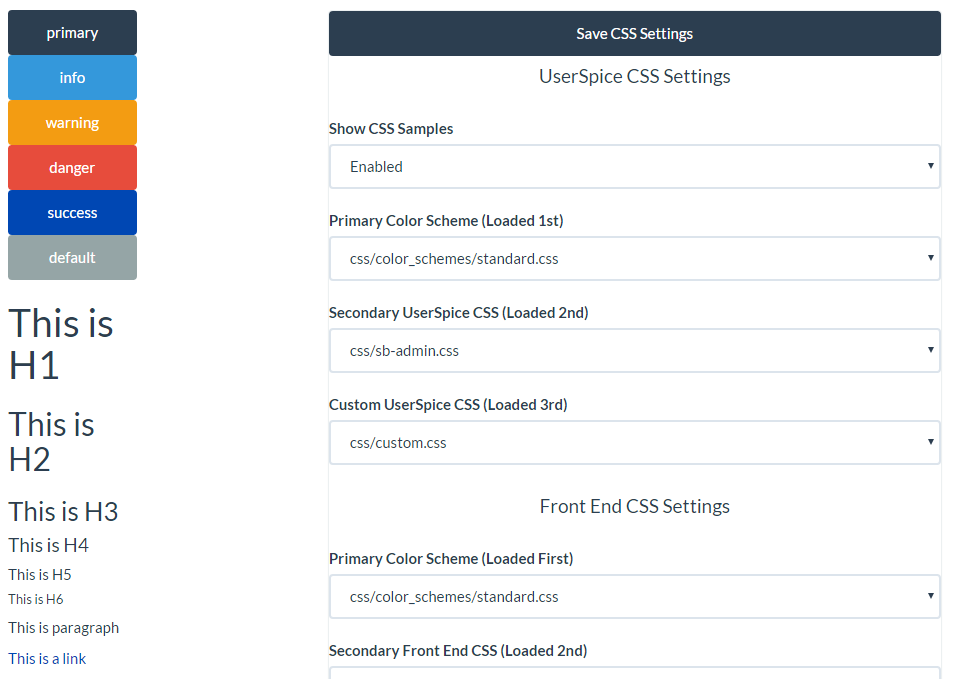 Here are some of the colors you might want to find/replace...
Here are some of the colors you might want to find/replace...
CSS Find/Replace
2c3e50 Primary 1A242F Primary Hover 3498db Info 217DBB Info Hover f39c12 Warning C87F0A Warning Hover e74c3c Danger D62C1A Danger Hover 0047b3 Success 003380 Success Hover 95a5a6 Default 798D8F Default Hover 19222E Link Hover Color